About
BLOG

Interested in a little light reading?

Our blog is continually updated with helpful educational information, advises, research and insights—all in the name of helping you level-up your color and appearance needs. Grab a drink and enjoy our stories!

Explore Our Stories
14-07-24b-ppt-directional-45-0-or-0-45-geometry-instruments.jpg

"How can I perform a first-time installation of EasyMatch QC software?"

Read More

Explore Our Products

VIEW MORE

MoodyFood1.jpg

"Using ASCII Export on Multiple Jobs"

Read More
14-08-26-spc-chart-of-didymium-filter-at-430-nm.jpg

"SPC Results for Diagnostic Didymium Filter Test"

Read More
14-08-26-spc-chart-of-didymium-filter-at-430-nm.jpg

"SPC Results for Diagnostic Didymium Filter Test"

Read More
14-07-24b-ppt-directional-45-0-or-0-45-geometry-instruments.jpg

"How can I perform a first-time installation of EasyMatch QC software?"

Read More
MoodyFood1.jpg

"Using ASCII Export on Multiple Jobs"

Read More

How can I perform a first-time installation of EasyMatch QC software?

Posted on Dec 03, 2025 by HunterLab

HunterLab SuperProハードウェアキーおよびセンサー統合用EasyMatch QCソフトウェアインストールおよび設定ガイド

  1. ネットワークまたはローカルPCにインストールする場合、EasyMatch QCソフトウェアをインストールする人は、PCのシステム管理者であり、両方のコンピュータのソフトウェアインストール権限を持っている必要があります。
  2. PC上でEasyMatch QC Menuプログラムを起動し、インストールCDからEZMQCソフトウェアをインストールします。EasyMatch QCソフトウェアをインストールする手順に従ってください。完了する前に"installation successful"メッセージが表示されなければならないことにご注意ください。インストール後、PCを再起動してください。
  3. CDボックスからHunterLab SuperProハードウェアキーを取り出し、新しいコン ピュータのUSBポートにインストールしてください。ハードウェアキーがオペレーティングシステムに初めて認識されるまでしばらく待ちます。このSuperProハードウェアキーのドライバは、EasyMatch QCのインストール中にインストールされ、オペレーティングシステムによって自動的に検出されます。このハードウェアキーは、EasyMatch QC ソフトウェアを起動するたびに、またその後の測定を行うときに存在する必要があります。
  4. センサーの電源が入っていることを確認します。その後、デスクトップアイコンを使用してEasyMatch QCを起動するか、"Start/Programs/HunterLab/EasyMatch QC "を選択します。
  5. 初めてプログラムを実行するときは、Sensor/Install-Configure でセンサーをインストールするよう促されます。
  6. 適切なセンサーモデルと通信用 COM ポートを選択する。下限と上限の標準器を使用して装置の標準化を進めます。標準化に成功すると、HunterLab装置とソフトウェアが設置適格(IQ)であることを意味します。
  7. EasyMatch QCはソフトウェアの再スタートを促し、センサは再スタート時に認識され、アクティブになるはずです。

インストールに問題がある場合は、EZMQCのインストールに関するFAQを検索するか、ハンターラボまでお問い合わせください。

Posted in EasyMatch QC

Using ASCII Export on Multiple Jobs

Posted on Dec 03, 2025 by HunterLab

複数のジョブでAutomatic ASCII Export(自動ASCIIエクスポート)機能を使い、それぞれのジョブが別々のファイルにエクスポートすることはできますか?

EasyMatch QC ソフトウェア内ですべてが正しくセットアップされていれば、Automatic ASCII Export 機能を複数のジョブで使用し、各ジョブを異なるファイルにエクスポートすることが可能です。これが適切に設定されていることを確認するために、ASCII Export設定が設定されたら各ジョブを保存する必要があります。ASCII Export のセットアップに関するより詳しい情報は こちら のブログノートを参照してください。

ASCII Export Configuration 画面で使用するファイル名を指定したら、File/Save Job に進んでください。これで ASCII Export Configuration の設定がジョブに保存されます。その後、新しいジョブを作成するか、またはジョブを開いて Options/ASCII Export/Configure に進み、指定された場所として新しいファイル名を使用することができます。設定が終わったら、File/Save Job で設定を保存してください。これは必要なジョブファイルの数だけ行うことができます。ただ、Options/ASCII Export/Configure でエクスポートファイル名と場所を指定したら、File/Save Job でジョブを保存してください。

Posted in EasyMatch QC

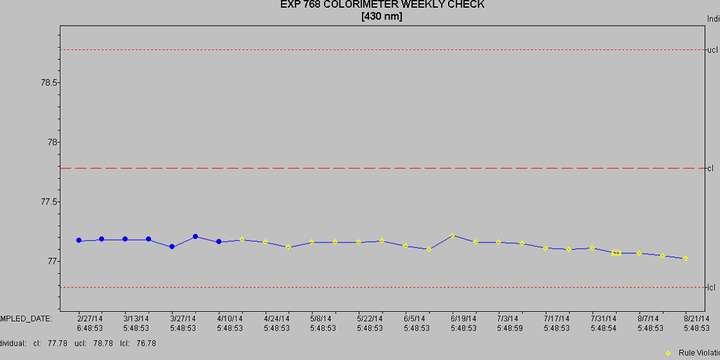
SPC Results for Diagnostic Didymium Filter Test

Posted on Dec 03, 2025 by HunterLab

よくある質問「HunterLab Vistaのディディミウムフィルターのテスト結果をSPCチャートに時系列でプロットし、傾向を調べています。430nmと570nmのフィルターが徐々に減少しているのがわかります。何が起こっているのかを理解する手助けをしていただけますか?"

ディディミウムフィルターテストは、センサーが工場で最後に波長較正されてから数ヶ月、数年にわたり、装置の光路の波長アライメントが一貫していることをユーザーが自己証明できるように設計された装置診断テストです。

Posted in EasyMatch QC

SPC Results for Diagnostic Didymium Filter Test

Posted on Feb 09, 2024 by HunterLab

FAQ: “We take the results from the Didymium Filter Test on our HunterLab Vista and plot them in an SPC chart over time to look at trends. We are seeing the 430 and 570 nm filters slowly decrease. Can you help us understand what may be occurring?”

The Didymium Filter Test is an instrument diagnostic test designed to allow the user to self-certify that the wavelength alignment of the instrument optical path is consistent over months and years since the sensor was last wavelength calibrated at the factory.

Posted in EasyMatch QC

How can I perform a first-time installation of EasyMatch QC software?

Posted on Feb 09, 2024 by HunterLab

EasyMatch QC Software Installation and Configuration Guide for HunterLab SuperPro Hardware Key and Sensor Integration

  1. For either a network or local PC installation, the person installing EasyMatch QC software must be a System Administrator for the PC, with software installation privileges for both computers.
  2. On the PC, install the EZMQC software from the installation CD by activating the EasyMatch QC Menu program. Follow the steps to install the EasyMatch QC software to completion. Please note that you must see a “installation successful” message before you are done. Re-start your PC after the installation.
  3. Take the HunterLab SuperPro hardware key from the CD box and install it at any USB port on the new computer. Wait a moment for the hardware key to be recognized the first time by the operating system. The driver for this SuperPro hardware key was installed during the EasyMatch QC installation and will be found automatically by the operating system. This hardware key must be present every time you start up EasyMatch QC software, and when making subsequent measurements.
  4. Make sure your sensor is powered up. Then Start EasyMatch QC using the desktop icon or select “Start/Programs/HunterLab/EasyMatch QC”.
  5. The first time the program is run, you will be prompted to install a sensor at Sensor/Install-Configure.
  6. Select the appropriate sensor model and COM port for communications. Proceed to standardize the instrument using the bottom and top-of-scale standards. A successful standardization means that your HunterLab instrument and software is installation-qualified (IQ).
  7. EasyMatch QC will prompt you to re-start the software, and the sensor should be recognized and active when re-started.

If you have any installation difficulties, search our FAQs on EZMQC installation, or contact HunterLab.

Posted in EasyMatch QC

Using ASCII Export on Multiple Jobs

Posted on Nov 29, 2023 by HunterLab

Can you use the Automatic ASCII Export feature on more than one Job so that each Job exports to a separate file?

Providing everything is setup correctly within the EasyMatch QC software, it is possible to use the Automatic ASCII Export feature on more than one Job and to have each Job export to a different file. To make sure this is setup properly each Job must be saved once the ASCII Export configuration has been set. For more information on setting up the ASCII Export please see our blog note here.

Once you have designated the file name to be used in the ASCII Export Configuration screen make sure you go to File/Save Job. This will save your ASCII Export Configuration settings to your Job. You can then create a new Job, or open a Job and go to Options/ASCII Export/Configure and use a new file name as the designated location. When you are finished go to File/Save Job to save the configuration. This can be done for as many Job files as you need. Just be certain once you designate the export file name and location in Options/ASCII Export/Configure to save the Job by going to File/Save Job.

Posted in EasyMatch QC
Prev
1
Next

Most Related Posts

  • How can I perform a first-time installation of EasyMatch QC software?
  • Using ASCII Export on Multiple Jobs
  • SPC Results for Diagnostic Didymium Filter Test
  • SPC Results for Diagnostic Didymium Filter Test
  • How can I perform a first-time installation of EasyMatch QC software?
  • Using ASCII Export on Multiple Jobs
More

Follow us on social

  • LinkedIn
  • YouTube
  • facebook
  • X
  • instagram